
Taking screenshots is one of the most useful everyday skills for students, professionals, teachers, and casual users alike. If you use a Chromebook, learning how to screenshot on Chromebook can save time, improve communication, and make sharing information effortless. The good news is that screenshotting on a Chromebook is simple, fast, and does not require any extra software.
In this detailed guide, you will learn how to screenshot on Chromebook using different methods, keyboard shortcuts, touch controls, and built-in tools. This article is written in a clean, beginner-friendly style, with no external references, making it easy to understand and apply instantly.
What Is a Screenshot on a Chromebook?
A screenshot is a digital image that captures whatever is currently displayed on your Chromebook screen. Whether you want to save an error message, share an online receipt, capture class notes, or keep a visual record, screenshots are incredibly helpful.
Chromebooks run on ChromeOS, which comes with built-in screenshot features. This means you don’t need to install anything extra to learn how to screenshot on Chromebook effectively.
Why Knowing How to Screenshot on Chromebook Is Important
Understanding how to screenshot on Chromebook is essential for several reasons:
- It helps students submit assignments visually
- It allows professionals to report issues clearly
- It makes tutorials and guides easier to create
- It saves important information instantly
- It improves productivity and communication
Once you master these methods, screenshots will become second nature.
How to Screenshot on Chromebook: Full Screen Method
The most common and easiest way to take a screenshot is capturing the entire screen.
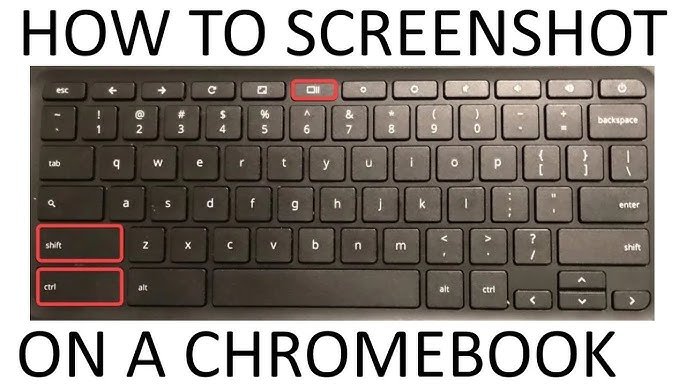
Steps to Take a Full Screenshot
- Press the Ctrl key
- Press the Show Windows key (the key with a rectangle and two lines)
When you press both keys together, your Chromebook instantly captures the entire screen.
What Happens Next?
- The screenshot is automatically saved
- A small notification appears briefly
- The image is stored in the Downloads folder
This method is perfect when you want everything on your screen saved at once.
How to Screenshot on Chromebook: Window Screenshot
Chromebooks also allow you to capture a specific window instead of the full screen.
Steps to Capture a Window
- Press Ctrl + Alt + Show Windows
- Click on the window you want to capture
The Chromebook will take a screenshot of only that active window.
This method is ideal for multitasking users who work with multiple windows open.
How to Screenshot on Chromebook Using the Screenshot Tool
ChromeOS includes a built-in Screenshot Tool that offers even more flexibility.
How to Open the Screenshot Tool
- Click the time in the bottom-right corner
- Select the Screenshot icon
Once opened, you can choose between:
- Full screen screenshot
- Partial screenshot
- Window screenshot
This visual tool is especially helpful for beginners learning how to screenshot on Chromebook without memorizing shortcuts.
How to Screenshot on Chromebook in Tablet Mode
If your Chromebook supports tablet mode or touch input, screenshots work a bit differently.
Tablet Mode Screenshot Steps
- Press the Power button
- Press the Volume Down button at the same time
This works similarly to taking screenshots on mobile devices.
Tablet mode is commonly used on 2-in-1 Chromebooks, and this method is quick and intuitive.
Where Screenshots Are Saved on Chromebook
After learning how to screenshot on Chromebook, it’s important to know where your screenshots go.
By default:
- Screenshots are saved in the Downloads folder
- File names include the date and time
- You can move, rename, or delete them easily
To access them:
- Open the Files app
- Click Downloads
From there, you can organize your screenshots however you like.
How to Edit Screenshots on Chromebook
Chromebooks include simple editing tools so you can adjust screenshots instantly.
Basic Editing Options
- Crop unwanted areas
- Draw or highlight text
- Add simple notes
- Zoom in or out
Just open the screenshot from the Files app, and editing tools will appear automatically.
This feature enhances the usefulness of screenshots for presentations and explanations.
Common Problems When Screenshotting on Chromebook
Even though learning how to screenshot on Chromebook is easy, users may face small issues.
Common Issues and Solutions
- Screenshot not saving: Check storage space
- Wrong keys pressed: Verify the Show Windows key
- Tablet mode confusion: Use power + volume down
- Can’t find screenshot: Look in Downloads folder
Most issues are minor and easily fixed.
Tips to Master How to Screenshot on Chromebook
Here are some helpful tips to improve your screenshot experience:
- Practice keyboard shortcuts regularly
- Rename screenshots for easy organization
- Delete unused screenshots to save space
- Use partial screenshots for clarity
- Learn both keyboard and touch methods
With consistent use, screenshotting becomes effortless.
Screenshot Shortcuts Summary
For quick reference, here’s a simplified summary:
- Full screen: Ctrl + Show Windows
- Partial screen: Ctrl + Shift + Show Windows
- Window capture: Ctrl + Alt + Show Windows
- Tablet mode: Power + Volume Down
Memorizing these shortcuts will greatly speed up your workflow.
Final Thoughts on How to Screenshot on Chromebook
Learning how to screenshot on Chromebook is a powerful yet simple skill that enhances productivity, communication, and digital efficiency. Whether you are a student capturing study notes, a professional documenting work, or a casual user saving important information, Chromebook screenshots make tasks easier.
ChromeOS provides multiple screenshot methods to fit every situation, from full screen captures to precise selections and tablet shortcuts. With no additional tools required, anyone can master screenshots in minutes.
By following this guide carefully, you now have complete knowledge of how to screenshot on Chromebook in every practical scenario. Practice these steps, explore the built-in tools, and make screenshots a natural part of your daily Chromebook use.
