
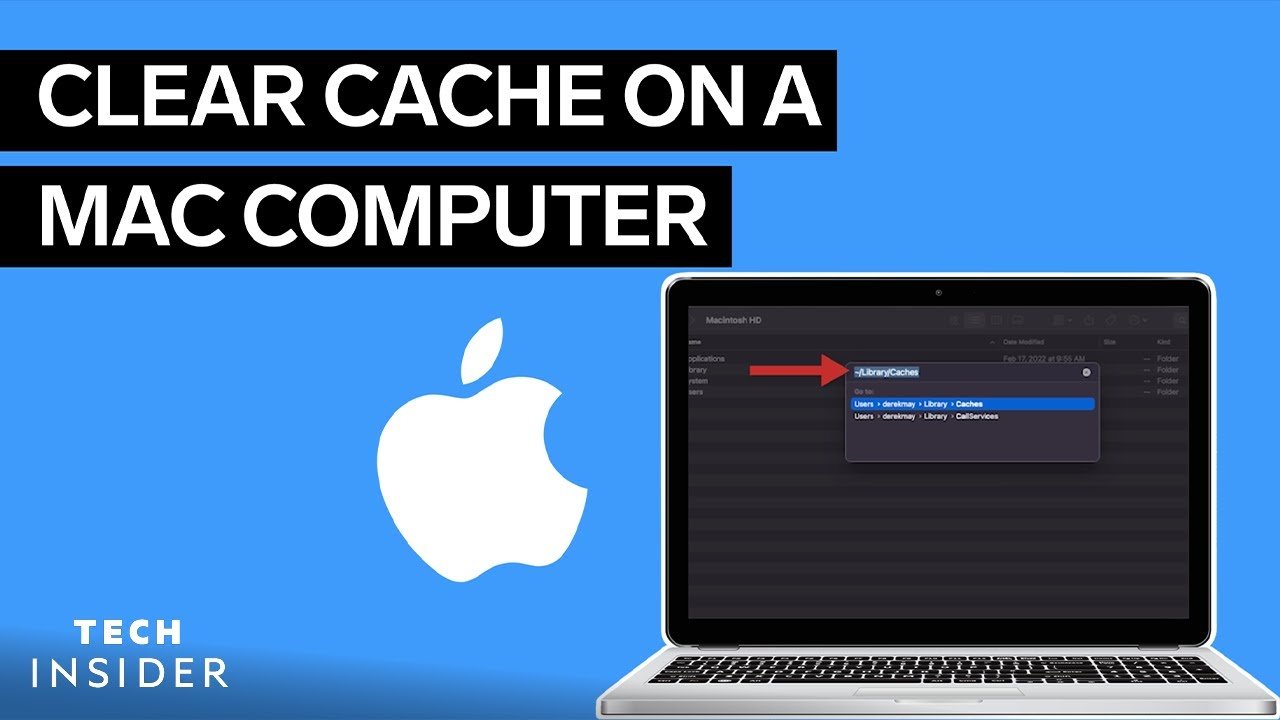
Clearing cache on a Mac may sound like a harmless maintenance task — freeing up disk space, improving performance, or clearing out clutter. But doing so indiscriminately or without proper understanding can actually be quite dangerous. In this article, we’ll explore what cache is, why it’s useful, and why you should exercise serious caution before you begin clearing it. We’ll dive into real risks, common mistakes, and safer practices you can follow to avoid damaging your system or causing unexpected problems.
What Is Cache, and Why Does macOS Use It?
Cache files are temporary data stored by your system, applications, and browsers to help speed up operations. For instance, when you browse a website, your browser saves images, scripts, and other resources locally so that the next time you visit, it can load faster. On a system level, macOS stores various system-cache files to improve responsiveness, memory management, and performance.
While they serve a useful role, these cached files can grow large, become outdated, and even corrupt. When that happens, clearing the cache might seem like a good idea — but it’s not always safe, especially if done without awareness.
Why Clearing Cache Can Be Risky
Deletion of Critical System Files
Not all cache files are disposable. Some system cache files are integral to how macOS operates. If you delete the wrong ones, you might inadvertently remove files that are crucial for system stability. According to expert advice, you should avoid deleting entire cache folders unless you strictly know what you’re doing — otherwise, you risk breaking system functionality.
Application Instability
Many apps rely on cache data to store frequently used information or user preferences. Completely wiping out an app’s cache can cause problematic behavior like resetting settings, losing session data, or making the application slower as it rebuilds its cache. For heavy tools — video editors, image editors, or games — unexpected deletion can even force them to reindex data or rebuild very large temporary files, wasting time.
Performance Slowdowns After Cleaning
Paradoxically, while clearing cache is often done to speed things up, it can trigger a temporary performance degradation. That’s because once cache is deleted, your system or apps have to regenerate those files from scratch, which can take time and resources. Some users on community forums report that after a cleanup, their Mac slows down, or certain apps take longer to launch until the cache rebuilds.
Risk of Data Loss
If you delete cache manually (for example, by going to ~/Library/Caches), there’s always the danger of mistakenly removing files that contain more than just cache — or removing cache from an app that stores important data in its cache folder. Some cache folders may contain elements that, when deleted, reset app preferences or make you log in again, potentially causing inconvenience or data disruption.
Privacy — But Also Exposure
While clearing cache can improve privacy by removing locally stored web data and potentially limiting tracking, it doesn’t guarantee full protection. More dangerously, if you follow dubious or malicious “quick fix” guides found online (especially non-trusted sources), you might run commands that download and execute harmful scripts, exposing your system to malware. There are real reports of this happening when users blindly run one-liner commands from unverified sites.
Improper Use of Third-Party Tools
Third-party cleanup utilities promise fast and deep cleaning. But if they’re not carefully designed, they may delete vital files. Some are safer than others: reputable tools filter what’s safe to delete, while lesser-known ones might let you wipe too much. Even trusted tools require care — blindly “clean everything” is not always a good idea.
Real-World Examples of Things Going Wrong
Based on user reports and expert findings, here are some real consequences of reckless cache clearing:
- Some users experienced system instability or lost important functionality after deleting system cache files.
- On Mac devices, browser sessions and login states can get wiped out when the cache is cleared, forcing re-logins and loss of unsaved data.
- In one case, a user removed their entire
~/Library/Cachescontent, only for the folder to refill quickly and for performance to suffer — and some system services required reconfiguration. - Another user followed a malicious command found online to “clear system data.” Rather than improving performance, they ended up executing a script that could have compromised their security.
- People have reported that after using cleanup apps, browsers like Safari took much longer to start until their cache rebuilt, and sometimes even froze or acted strangely.
Safer Ways to Clear Your Cache
Given the risks, it’s critical to adopt a careful, deliberate approach to clearing cache on your Mac. Here are some guidelines and safer practices:
Back Up First
Before doing anything, make a full backup via Time Machine (or any other backup method). If something goes wrong, you want a way to restore your system to its previous state.
Target Only What Needs Clearing
- User (App) Cache: Navigate to
~/Library/Cachesvia Finder → Go → Go to Folder. Only delete contents within app-specific cache folders rather than deleting entire folder structures. - System Cache: Be very cautious. Only touch system cache if you’re confident about the folders and know which files are safe.
- Browser Cache: Use the browser’s built-in “Clear Browsing Data” or “Empty Caches” option instead of manually deleting files.
Use Trusted Cleanup Tools
If manual cleanup feels too risky, rely on reputable optimization tools. For example:
- Applications like CleanMyMac (from a trusted vendor) scan and flag only the files that are safe to remove, and preserve system-critical cache files.
- AVG TuneUp for Mac offers selective cache deletion and clearly warns you about potentially dangerous items.
Restart in Safe Mode
Booting your Mac in Safe Mode clears some system caches automatically, and it’s a more controlled way to let macOS manage certain temporary files itself.
5. Be Wary of Terminal Commands
Unless you know exactly what a command does, do not run it. Commands like sudo dscacheutil -flushcache (for DNS cache) should only be used when you’re sure you need them—and always double check where instructions come from. Avoid running obscure one-liners from random websites, especially if they fetch scripts from remote sources.
Monitor After Cleaning
After cleaning, keep an eye on system behavior:
- Does your Mac boot normally?
- Are applications launching fine?
- Is performance stable?
- Have you lost any settings or sessions?
If something seems off, consider restoring from backup, or manually re-generating needed cache by reopening applications and letting them rebuild.
When and Why You Might Want to Clear Cache
That said, clearing cache is not inherently bad — it has legitimate uses when done carefully:
- Privacy concerns: Clearing browser cache can help reduce locally stored tracking information and remove old cookies or session data.
- Fixing glitches: Corrupted cache can cause application errors, crashes, or rendering issues. Deleting just the relevant cache often solves those problems.
- Disk space recovery: Over time, cache from large apps (especially creative ones) may consume gigabytes. Cleaning unused or stale cache can reclaim that space — just don’t go overboard.
Final Thoughts
Clearing cache on a Mac is a double-edged sword. On one hand, it’s a powerful way to free up space, boost performance, and address specific issues. On the other hand, it’s risky if done carelessly: you might delete critical system files, lose application data, or trigger worse instability than what you started with.
The key is to approach cache clearing with respect and caution. Back up your data, use trusted tools, target only the cache you truly need to remove, and avoid blind mass deletion. If you don’t understand exactly what a file is, or if it belongs to a core system process, leave it alone.
When handled thoughtfully, cache management can be a useful part of regular maintenance — but it should never be treated as a “quick fix” without consequences. Proceed wisely, and you’ll minimize risk while maximizing benefit.
